
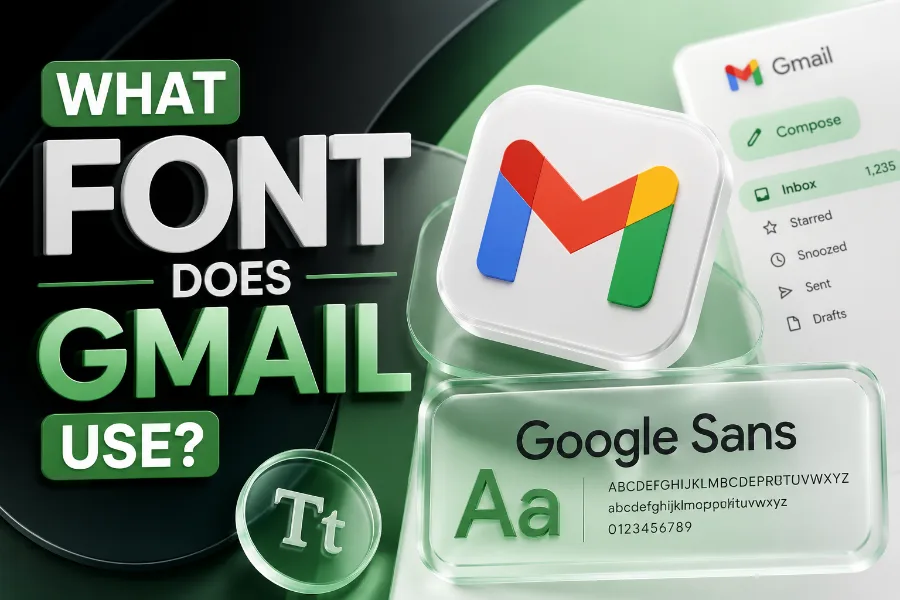
What font does Gmail use? Gmail mainly uses Google’s modern sans-serif design system across its interface, while email body text can display through Roboto, Arial, Helvetica, or another fallback font depending on your device, browser, and email settings.
That answer sounds simple, but Gmail typography has layers that many quick explanations skip. You are not only looking at one font; you are looking at the difference between Gmail’s interface, the text inside emails, mobile rendering, web safe fonts, and the way email clients handle custom styling.
What Font Does Gmail Use In Its Interface?
Gmail’s interface uses a clean Google-style sans-serif system designed for clarity, speed, and consistency. In simple terms, the Gmail interface is commonly associated with Google Sans or Product Sans-style typography for navigation, labels, buttons, menus, and other user interface elements.
This matters because the interface font is not the same thing as the font inside an email message. The font you see in the sidebar, search bar, compose button, inbox tabs, and toolbar belongs to Gmail’s product design, while the font inside a message can change based on the sender’s formatting and your device.
Gmail’s interface typography has one job: make the inbox easy to scan without drawing too much attention to itself. The typeface needs to be readable at small sizes, work across screen resolutions, and support quick decision-making when you are sorting unread messages, starred emails, promotions, or work threads.
Modern Google typography also helps Gmail feel connected to other Google products. When you move from Gmail to Drive, Calendar, Docs, or Meet, the visual rhythm feels familiar because the fonts, spacing, icons, and menus follow the same product language.
If you want to experiment with decorative text for bios, captions, or social-style messages, a font generator that create stylish text in seconds can be useful as a tool, but Gmail’s actual interface depends on practical system fonts that protect readability. Stylish text can help in casual contexts, while Gmail’s own typography stays simple because inboxes need clarity more than decoration.
Why Gmail Does Not Have Only One Font
The best answer to what font does Gmail use is not a single font name because Gmail is both an app interface and an email-rendering environment. That means Gmail controls the design of its own menus, but it does not fully control every font used inside every email you receive.
When someone sends you a plain-text email, Gmail may display it using a default readable font. When someone sends an HTML email, the sender may define a font stack in the email code, and Gmail may honor part of that styling or fall back to a safer font.
This is why two emails in the same Gmail inbox can look different. A personal message from a friend may appear in a simple default font, while a newsletter from a brand may use a carefully styled HTML template with custom font choices, fallback fonts, spacing, and line-height settings.
Gmail also behaves differently across platforms. Gmail in a desktop browser, Gmail on Android, Gmail on iPhone, and Gmail inside third-party environments may not render fonts in exactly the same way.
The practical takeaway is straightforward. Gmail’s product interface uses Google’s clean design language, but the body of an email can depend on the sender’s formatting, your operating system, your browser, and Gmail’s support rules.
Gmail Interface Font Vs Email Body Font
You need to separate Gmail’s interface font from Gmail’s email body font before you can understand the topic properly. The interface font covers Gmail’s navigation labels, settings panels, buttons, category tabs, search features, and other controls you use to manage your inbox.
The email body font is different because it belongs to the message content. A sender can choose fonts such as Arial, Georgia, Verdana, Times New Roman, or another available option when writing or designing an email.
Gmail may display message text in Roboto on Android because Roboto is deeply tied to Google’s mobile design system. On iOS, the same email may look closer to Helvetica or another Apple-friendly system font because the operating system handles font rendering differently.
This difference is important for designers, marketers, bloggers, and business owners. If you are creating email campaigns, you should not assume that your chosen font will appear perfectly for every Gmail user.
The safer method is to build a reliable font stack. That means choosing your preferred font first, then adding fallback fonts that still look clean if Gmail cannot display the original choice.
A strong email font stack might use a modern sans-serif first, followed by Arial, Helvetica, and a generic sans-serif fallback. This gives your email a better chance of looking polished even when Gmail ignores a custom web font.
Does Gmail Use Roboto?
Roboto is one of the most important fonts in the Gmail conversation because it is widely used across Google and Android environments. It was designed for digital screens, which makes it a natural fit for mobile reading, app interfaces, and clean UI layouts.
Roboto has open shapes, balanced spacing, and a neutral personality. It does not feel overly formal, decorative, or cramped, so it works well for long email threads, short notifications, labels, snippets, and compact mobile screens.
You may see Roboto connected with Gmail when people talk about message text, Android rendering, and Google’s broader product ecosystem. However, you should avoid saying that every Gmail screen and every Gmail email always uses Roboto because that would oversimplify the topic.
Gmail’s desktop interface may rely on Google Sans-style interface typography, while email body content may fall back to Roboto, Arial, Helvetica, or another font based on the environment. The exact display depends on the combination of Gmail, the device, the browser, the sender’s email code, and available fonts.
So, does Gmail use Roboto? Yes, Roboto plays a major role, especially in Android and Google’s screen-first design world, but it is not the only font involved in Gmail.
Does Gmail Use Arial?
Arial still matters in Gmail because it is one of the safest fonts for email rendering. It is widely installed, familiar to readers, and supported across many platforms, which makes it a dependable fallback when custom fonts fail.
Older Gmail experiences were often associated with Arial because it was practical and available almost everywhere. Even today, email designers use Arial in font stacks because it is predictable, clean, and unlikely to break an email layout.
Arial may not have the same polished brand personality as Google Sans or Roboto, but it solves a real email problem. Emails need to look readable in different inboxes, browsers, apps, and operating systems, and Arial remains one of the most reliable choices for that job.
For business emails, Arial can be a safe default because it feels neutral and professional. It does not distract from the message, and it keeps the reading experience stable for most users.
If your goal is brand expression, Arial may feel too plain. If your goal is deliverability, readability, and consistency inside Gmail, Arial remains useful because safe fonts often beat fancy fonts in real inboxes.
What Font Does Gmail Use For Composing Emails?
When you compose an email in Gmail, the font you see can depend on your Gmail settings and formatting choices. Gmail gives users basic formatting controls, including font style, size, bold, italic, underline, text color, alignment, lists, and other simple editing options.
The default compose experience is built for speed, not complex typography. Gmail wants you to write messages quickly, send them cleanly, and make sure the recipient can read them without formatting problems.
For everyday users, the safest approach is to keep the default font unless there is a clear reason to change it. A simple default font is usually better for professional communication because it avoids inconsistent rendering and keeps attention on the content.
For newsletters and marketing emails, the compose window is not enough. Serious email design usually happens in an email builder or HTML template where the designer can define font stacks, line spacing, mobile behavior, and fallback rules.
Even then, Gmail may not display everything exactly as designed. That is why experienced email creators test campaigns before sending them to a large list.
Gmail Font Support For Email Marketers
If you create marketing emails, Gmail’s font behavior deserves special attention. Gmail is one of the world’s most used email clients, so a font choice that fails in Gmail can affect a large portion of your audience.
Web fonts can make an email look more branded, but support is inconsistent across email clients. Some clients display them well, while others ignore them and use a fallback font instead.
Gmail has historically been more restrictive with web font support than designers would like. That means your beautiful custom font may not appear for many Gmail users, even if it looks perfect in your email editor.
This is why email marketers use font stacks. A good font stack tells the email client what to display first, second, third, and finally if earlier options are unavailable.
For example, a brand might choose a custom sans-serif font first, then use Arial and Helvetica as fallbacks. If Gmail does not support the custom font, the email still appears clean and readable instead of broken or awkward.
The main rule is simple: design for the inbox, not just the preview screen. Gmail users care more about clear reading, fast scanning, and trustworthy formatting than whether your exact brand font loads.
Best Fonts To Use In Gmail Emails
The best fonts for Gmail emails are clean, familiar, and easy to read on desktop and mobile screens. Good choices include Arial, Helvetica, Verdana, Georgia, Times New Roman, and Tahoma, depending on the tone of the message.
Arial and Helvetica are strong choices for business, SaaS, healthcare, finance, education, and general professional emails. They look modern enough without creating rendering risks.
Verdana is useful when readability matters at smaller sizes. It has wider spacing and clear letterforms, so it can work well for short paragraphs, transactional messages, and mobile-friendly email layouts.
Georgia is a good option when you want a warmer editorial feel. It works nicely for newsletters, personal essays, expert commentary, and long-form brand storytelling.
Times New Roman can work for formal or traditional communication, but it may feel dated in modern marketing emails. Use it only when the tone fits the audience and the message.
The best choice depends on your purpose. For most Gmail-focused emails, a simple sans-serif font stack will give you the strongest mix of readability, professionalism, and consistency.
Why Font Choice Affects Email Readability
Font choice affects how quickly readers understand your message. In Gmail, people often scan subject lines, preview text, sender names, and message content quickly, so your email typography must reduce friction.
A clear font improves comprehension because readers do not have to fight the letter shapes. A poor font creates invisible resistance, especially on small screens where tight spacing and thin strokes become harder to read.
Line height also matters. Even a good font can feel uncomfortable if the lines are packed too tightly or the paragraphs are too wide.
For email body text, a font size around 14 to 16 pixels is usually comfortable for most readers. Larger sizes may work for mobile-first newsletters, while smaller sizes can make emails feel crowded.
Contrast is another important factor. A readable font can still fail if the text color is too light or the background is too busy.
The goal is not to impress readers with typography. The goal is to make your email feel effortless to read from the first line to the final call-to-action.
Gmail Fonts On Desktop Vs Mobile
Gmail typography can look slightly different on desktop and mobile because each environment handles fonts in its own way. Desktop Gmail depends on the browser, operating system, and Gmail’s web interface, while mobile Gmail depends heavily on the app and device system fonts.
On Android, Roboto often appears because it is the native Android system font. This gives Gmail a smooth and familiar feel for Android users.
On iPhone, Gmail may render fonts in a way that feels closer to Apple’s system typography. That can make the same email look slightly different between an Android phone and an iPhone.
The differences are usually subtle, but they matter when you design emails at scale. A subject line, button, or headline that looks balanced on desktop may wrap awkwardly on mobile if the font metrics change.
That is why mobile testing is essential. You should preview emails in Gmail on different devices before assuming the layout is finished.
For most senders, the smartest solution is to keep fonts simple, use generous spacing, and avoid relying on exact font rendering. Gmail rewards practical design because real users read emails in messy, varied environments.
Should You Use Custom Fonts In Gmail Emails?
You can use custom fonts in email design, but you should not depend on them for Gmail. Custom fonts can strengthen brand identity, but Gmail may replace them with a fallback font when it cannot load or support them properly.
This does not mean custom fonts are useless. It means they should be treated as an enhancement, not the foundation of your email design.
If the custom font loads, your email may look more distinctive. If it does not load, your fallback font should still preserve the layout, tone, and readability.
A good custom-font strategy starts with visual similarity. Choose fallback fonts with similar width, height, and mood so the email does not look dramatically different when Gmail swaps the font.
For example, if your brand font is a clean geometric sans-serif, Arial or Helvetica may be acceptable fallbacks. If your brand font is a serif with editorial personality, Georgia may preserve the feeling better.
Never turn important text into images just to force a custom font. Image-based text hurts accessibility, may not load for some users, and can create problems for people using screen readers.
How To Choose A Gmail-Friendly Font Stack
A Gmail-friendly font stack should start with your preferred font and end with a generic family. This gives Gmail a clear path to follow when a specific font is unavailable.
A simple sans-serif stack might look like this in concept: preferred font, Arial, Helvetica, sans-serif. A serif stack might use preferred font, Georgia, Times New Roman, serif.
The first font is your ideal choice. The middle fonts are practical alternatives, and the final generic family gives the email client a last-resort instruction.
You should also consider spacing. Some fonts are wider than others, so a fallback can change how headlines wrap and how buttons appear.
Test your font stack in real inboxes, not only inside your email builder. Gmail previews can reveal spacing problems, broken hierarchy, or unexpected fallback behavior.
The best font stack is not the fanciest one. It is the one that keeps your email readable, branded enough, and stable across the devices your audience actually uses.
Common Mistakes People Make With Gmail Fonts
One common mistake is assuming Gmail will display every font exactly as selected. Email is not the same as a website, and Gmail does not always support typography the way modern browsers do.
Another mistake is using too many fonts in one email. Multiple fonts can make a message feel messy, slow down visual scanning, and weaken the professional tone.
Some senders also choose fonts that are too small. Small text may look neat on a large desktop monitor, but it becomes frustrating on a phone.
Others use decorative fonts for body copy. Decorative type can work for a short graphic headline, but it usually performs poorly for paragraphs, instructions, receipts, confirmations, and newsletters.
A final mistake is ignoring fallback fonts. If your first-choice font fails and the fallback is poorly matched, your email can look inconsistent even when the content is strong.
The safest approach is to use one primary font style, one fallback stack, clear spacing, and enough contrast. Gmail users reward clarity because they are usually trying to read quickly and move on.
Best Practices For Gmail Typography
Use simple fonts for body copy and save personality for layout, voice, imagery, and message structure. Typography should support the content, not compete with it.
Keep paragraphs short because Gmail users often read on mobile. Long blocks of text can feel heavy, even when the font is technically readable.
Use hierarchy carefully. A clear headline, readable body text, and properly styled buttons help readers understand what matters first.
Avoid using all caps for long phrases. All caps can work for tiny labels, but it becomes harder to read when used for full sentences or long headings.
Choose a font size that respects mobile readers. Body text around 14 to 16 pixels is a reliable starting point for most email designs.
Most importantly, test before sending. Gmail rendering can shift across devices, so the final inbox view matters more than the design canvas.
Conclusion
What font does Gmail use? Gmail uses a modern Google-style sans-serif approach for its interface, while email content may appear in Roboto, Arial, Helvetica, or another fallback font depending on the device, browser, operating system, and sender formatting.
The most accurate answer is layered, not absolute. Gmail’s interface belongs to Google’s clean product design system, but the text inside emails depends on real-world email rendering rules.
If you are a regular user, Gmail’s default font choices are usually enough for clear communication. If you are a marketer, designer, or business owner, you should build emails with safe font stacks, readable sizes, strong spacing, and reliable fallbacks.
Gmail typography works best when it feels invisible. When readers can scan, understand, and act without noticing the font, the design is doing its job.